Unfortunately, as of 1st October 2026, official support for Windows 7 has had to end. However, we have attempted to keep as much functionality as possible open to Windows 7 users, which I’ll outline here.
Installation
The GForce Installer will not install or run on Windows 7. Please download your instruments individually from the My Instruments page in your account. If you purchased the instrument prior to the cutoff date, you can download and install an older version of the instrument and authorise it using the activation code in your account.
If you purchased the instrument after the Windows 7 cut-off date or wish to use a version of the instrument released after it. You will be able to do so by using the Offline Activation process with a separate computer running the GForce Installer on a more modern operating system.
Offline Activation
- When faced with the log in screen in the instrument, click Offline Activation.
- Click Create ID File and save the presented machine_id file.
- Transfer the ID file back to your online computer.
- Back in the GForce Installer application, click the menu dots (…) next to the instrument again and select Offline Activation.
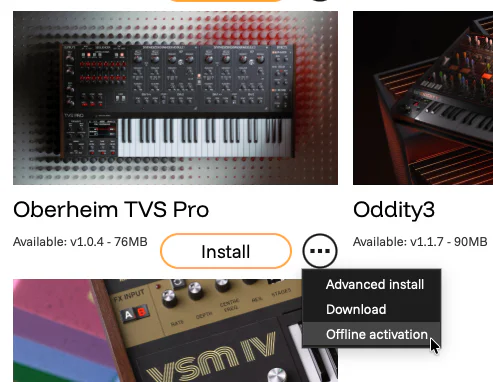
- Select your ID file. The GForce Installer will contact our server and create a unique activation file for your Win7 computer and product.
- Save the Offline Activation file.
TIP! If you have multiple products to activate on the Win7 computer you can reuse the same Machine ID file for each one. So repeat steps 4 to 6 for each instrument you have now, saving out multiple .offline_activation files.
- Transfer the offline activation file(s) to your offline computer.
- Drag and drop it onto the Offline Activation window in the instrument.
- Click Activate.