If your music production computer is offline, you can authorise your software via the Offline Activation process described below. You will need a second computer that does have internet access.
Note:
Once activated, GForce instruments with perpetual licences do not require internet access to run. So if possible, temporarily connecting your offline computer to the internet to install and activate your instrument may be quicker and easier. Once done you can disconnect it with confidence that your GForce Software instruments will continue to run. If you are a subscriber, this process will need to be done once per subscription period.
Installation
- Download and install the GForce Installer with an online computer.
- Log into the GForce Installer.
- Click the (…) button next to the instrument you wish to install.
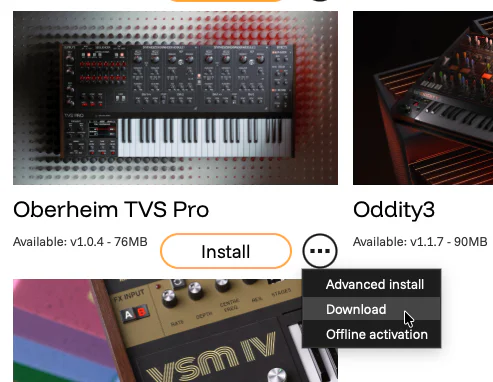
- Select Download. This will download the installer to your downloads folder without installing it.
- After downloading, transfer the downloaded dmg (Mac) or exe (Win) file to your offline computer.
- Run the dmg or exe on the offline computer to install the software.
- Run the instrument.
Activation
- When faced with the log in screen, click Offline Activation.
- Click Create ID File and save the presented machine_id file.
- Transfer the ID file back to your online computer.
- Back in the GForce Installer application, click the menu dots (…) next to the instrument again and select Offline Activation.
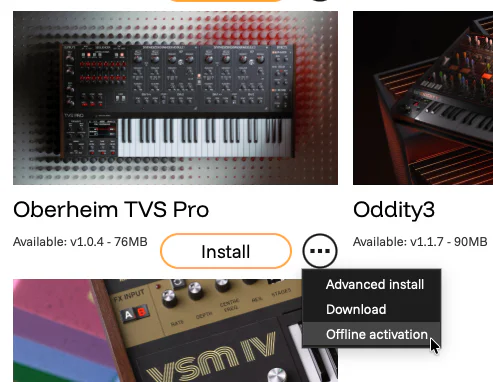
- Select your ID file. The GForce Installer will contact our server and create a unique activation file for your offline computer and product.
- Save the Offline Activation file.
TIP! If you have multiple products to activate on the offline computer you can reuse the same Machine ID file for each one. So repeat steps 11 to 13 for each instrument you have now, saving out multiple .offline_activation files.
- Transfer the offline activation file(s) to your offline computer.
- Drag and drop it onto the Offline Activation window in the instrument.
- Click Activate.