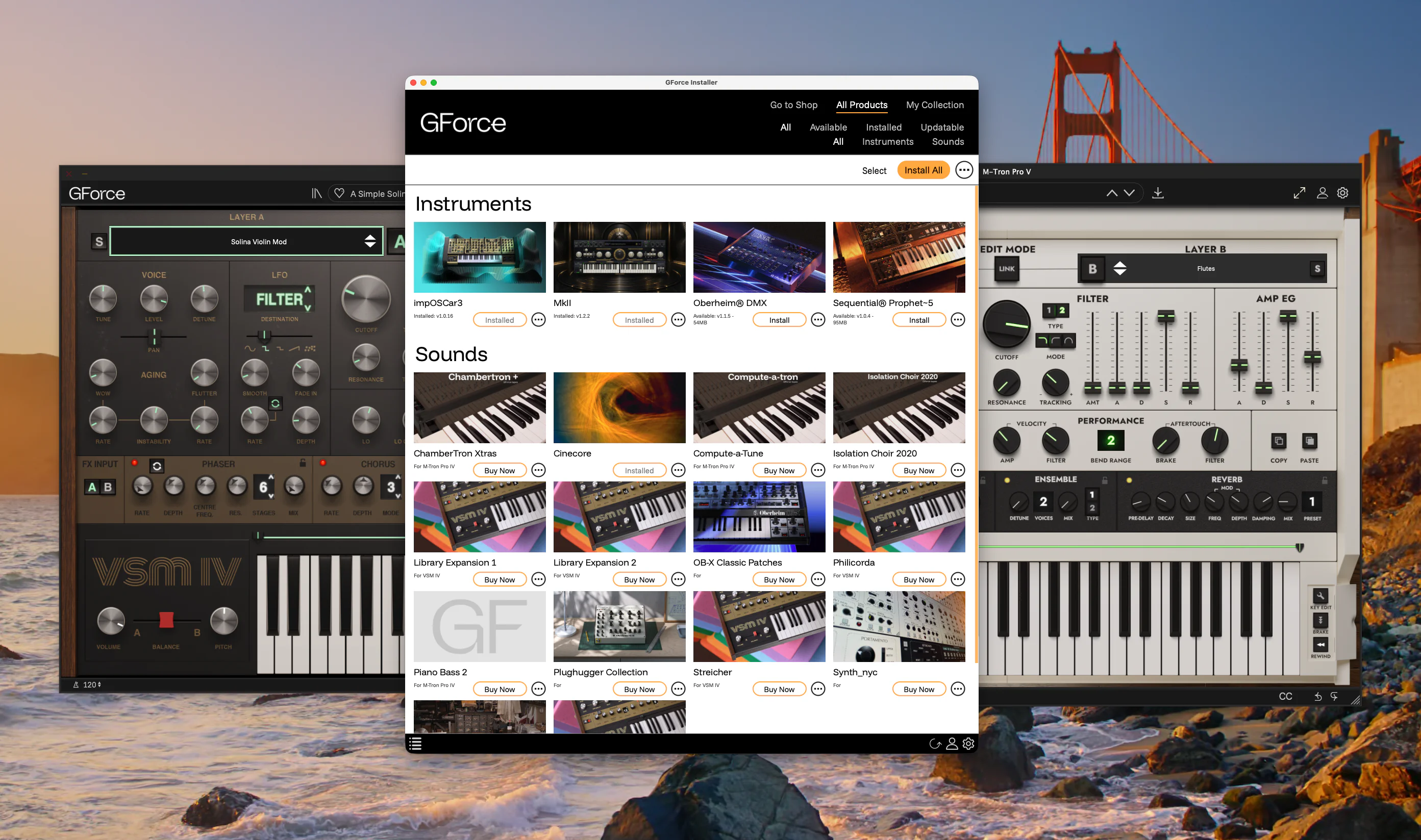
The GForce Installer greatly simplifies the installation process of M-Tron Pro IV and VSM IV for the majority of users. However, due to the fully open nature of previous installation methods used by these products, and their predecessors, it has been impossible for us to account for all potential upgrade scenarios. This post is designed to help customers understand what issues they may be seeing when installing these instruments for the first time since the GForce Installer release and how to resolve them.
Affected Customers
Users who have a custom library location set up for M-Tron Pro IV or VSM IV.
Known Issue
These instruments will now always install their library files to the default location, no matter if they’re installed via the GForce Installer or downloaded and installed individually.
Solutions
a) Delete the extra library
The new installers for M-Tron Pro IV and VSM IV will not change custom library settings when overwriting an old version. The new software will load and use your previously set-up custom library location immediately. This means the new library file that it just placed is unnecessary. If disc space is a concern to you, we recommend deleting the M-Tron Pro Library or VSM Library folder found here:
macOS:
- M-Tron Pro IV: /Library/Application Support/GForce/M-Tron Pro IV/
- VSM IV: /Library/Application Support/GForce/VSM IV/
Windows:
- M-Tron Pro IV: C:\ProgramData\GForce\M-Tron Pro IV
- VSM IV: C:\ProgramData\GForce\VSM IV
b) Use the default
If your custom location is on your system drive (the drive where macOS or Windows is installed) we recommend that you strongly consider changing your custom location to the default one. This will make any future updates much quicker and easier for you and you’ll see no change in performance.
After installing the instrument, delete your custom library folder to save that disc space. Then
- Open M-Tron Pro IV or VSM IV
- Open the patch browser from the header bar.
- Click the folder icon to open Collection Management Screen
- Click the bin icon next to the Library Directory to remove it.
- Click the Add icon (+) at the top.
- Select the default library location:
macOS:
- M-Tron Pro IV: /Library/Application Support/GForce/M-Tron Pro IV/
- VSM IV: /Library/Application Support/GForce/VSM IV/
Windows:
- M-Tron Pro IV: C:\ProgramData\GForce\M-Tron Pro IV
- VSM IV: C:\ProgramData\GForce\VSM IV