February 4, 2026
by Graeme Rawson
First Check
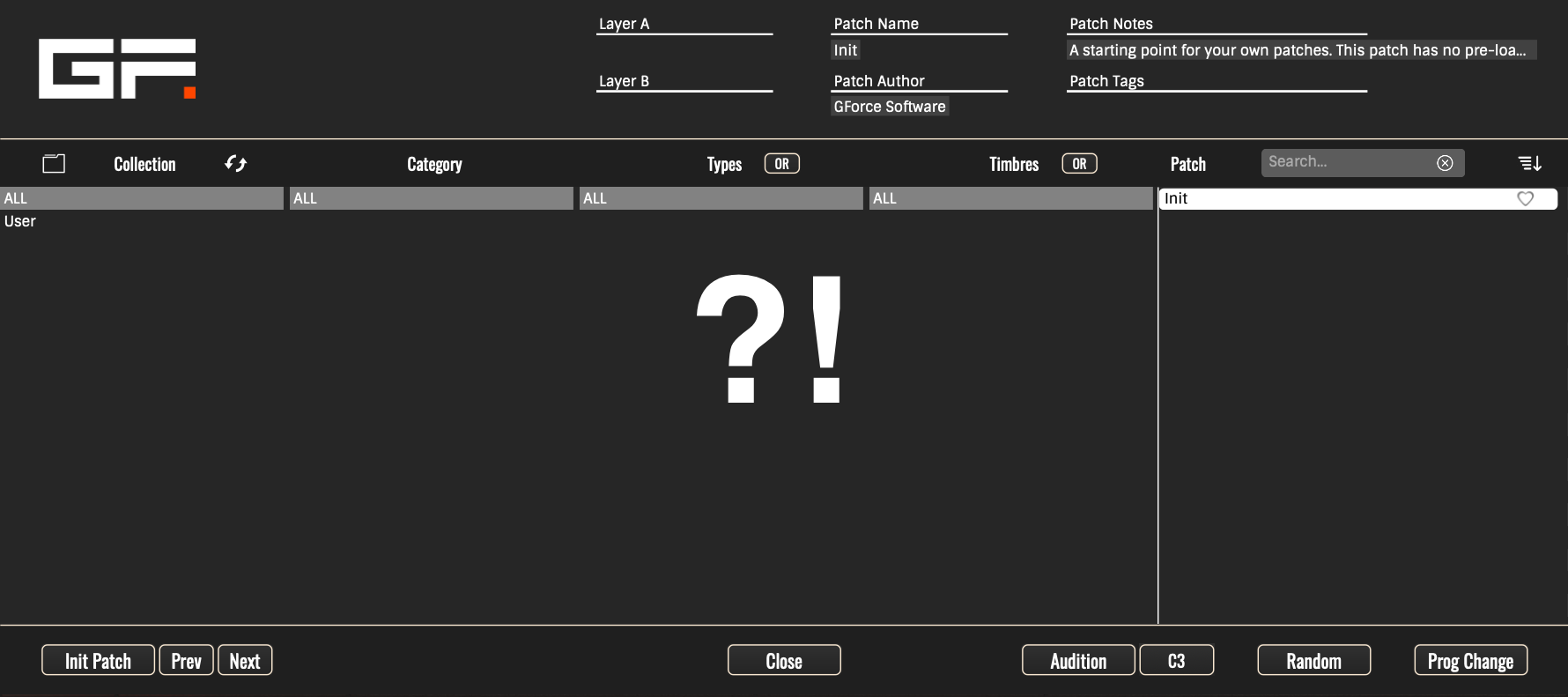
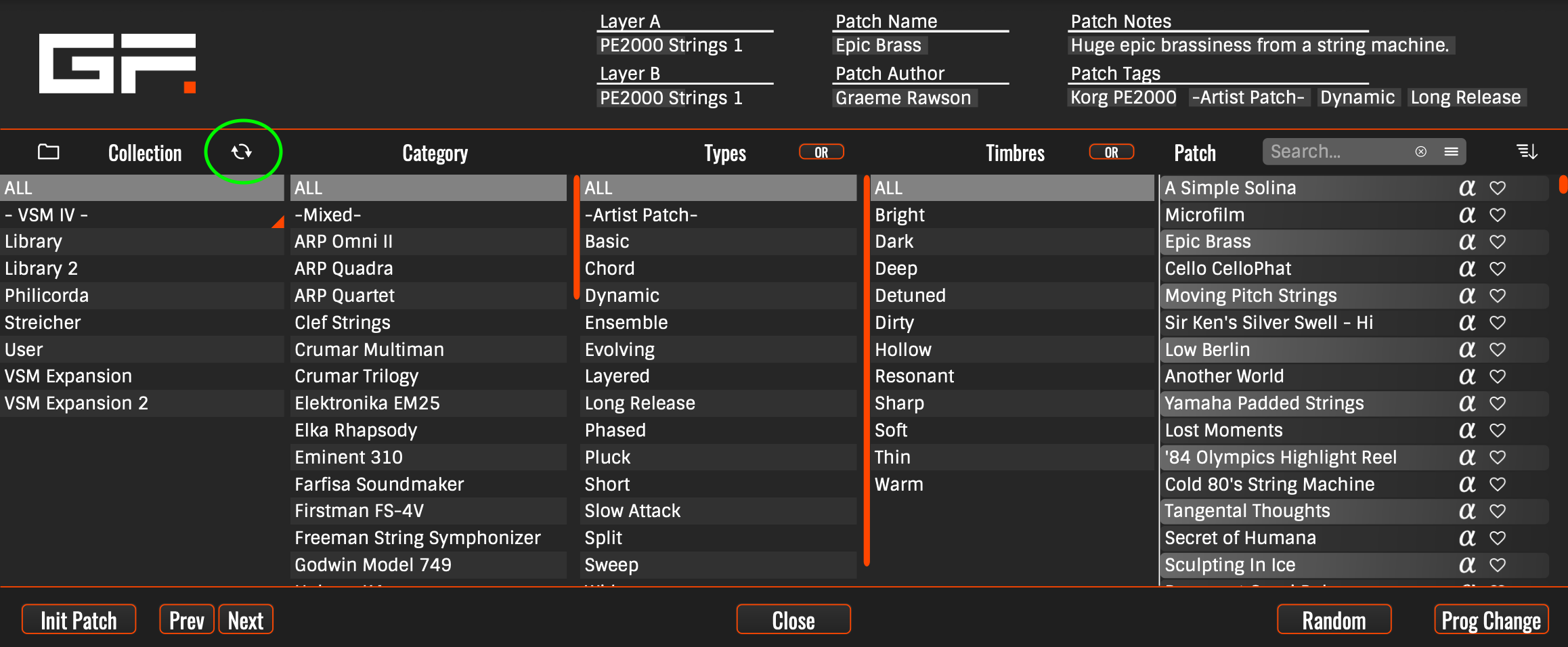
Before anything else, please open the patch browser and click the rescan icon. It looks like two-cycling arrows. This should resolve the majority of issues that may have occurred straight after installation.
What Next?
If the rescan didn’t work, then we need to check that the browser is looking in the right locations for the various elements it needs. This can be complex, and can be highly customisable, so the following article will give some general rules that you can apply to your own set up.
If in doubt, please contact our Technical Support team with details of your setup and we’ll be happy to help you out with some more tailored instructions.
Correcting the Setup
Start by clicking the folder icon to the left of the word “Collection”, this will open the Collection Management View.
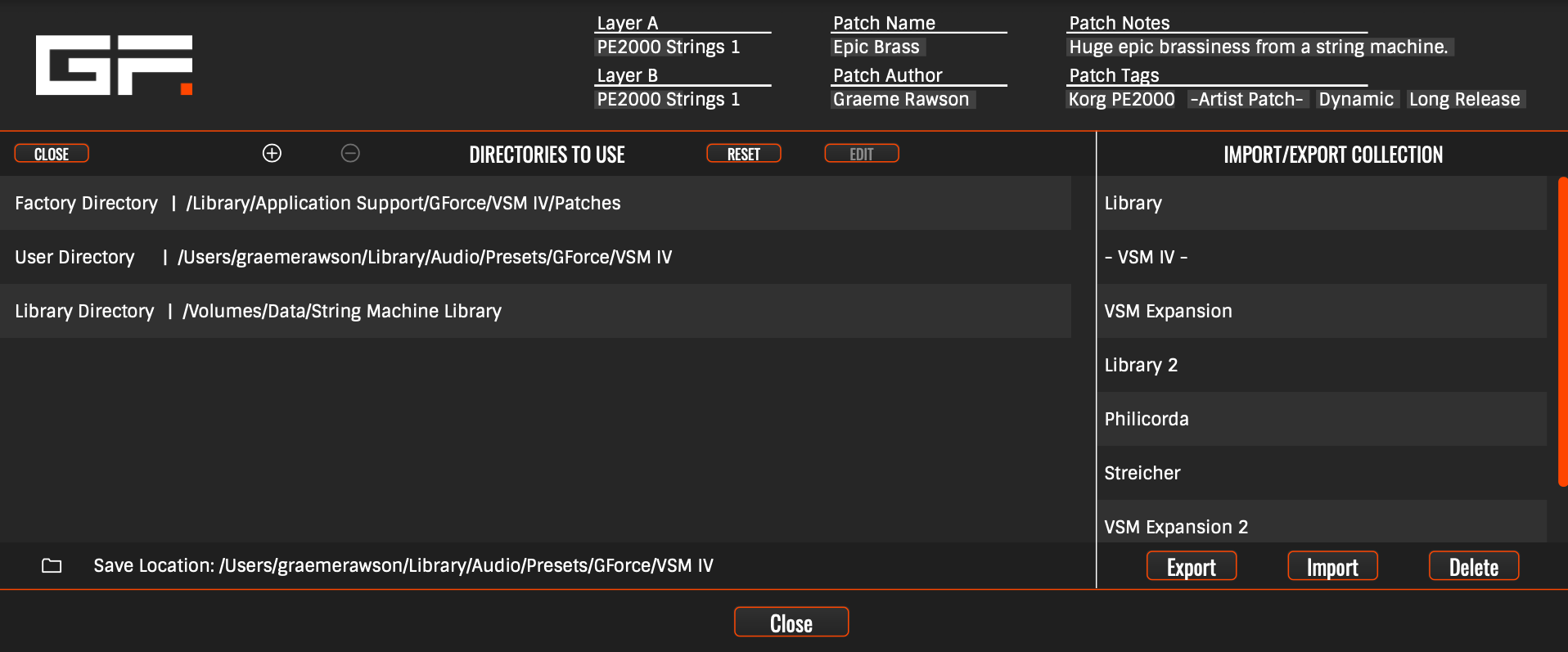
In this view you’ll see a list of file paths, in an ideal system you’ll see three. The aim of this process is to make sure that your M-Tron Pro IV or VSM IV, has the three elements it needs listed here. Then to perform the rescan.
The three parts it needs are:
- Factory Directory – This is the location where the individual factory patch files (.xml files) are kept.
- User Directory – This is the location where your user patches are saved and recalled. It’d usually be an empty folder immediately after installation.
- Library Directory – This is the location where the large sound library files (.cpt2 files) are stored on your system.
If you have no patches, one or more of these is wrong or missing – 99% of the time, it’s the library. These instruments will only show patches it has the sound library files for, so you can have all the patches set up, but if the library is missing, they won’t show in the browser.
Quick Steps
From here the quickest and most likely fix is the following:
- Click the Reset Button in the collection management screen.
- Click the Add icon (+).
- Find and select the “M-Tron Pro Library” (or “String Machine Library”) folder. If you’ve not moved it, it’ll be here:
Mac: /Library/Application Support/GForce/M-Tron Pro IV/ (or VSM IV)
Win: C:\ProgamData\GForce\M-Tron Pro IV\ (or VSM IV) - If you’ve not got it, download and install the Sound Library* from your account then do step 3. *labelled as Library 1 for VSM IV
- Close the collection management screen using the button in the top left corner. It should rescan automatically.
Digging Deeper
If that didn’t work, or you want to set this up in a custom way for your system. I’ll round out the information for you now.
Right-click each of these paths in turn, and select Show Folder. This will open up a folder in your OS which should contain the following.
- Factory Directory: A folder called “Patches” with many .xml files, nearly 2000 for VSM IV and over 4000 for MTP IV.
Default Locations:
Mac: /Library/Application Support/GForce/M-Tron Pro IV/ (or VSM IV)
PC: C:\ProgamData\GForce\M-Tron Pro IV\ (or VSM IV) - User Directory: A folder called “User Patches”, usually empty after installation, but possibly containing xml files you saved or imported using previous versions of the instrument.
Default Locations:
Mac: ~/Library/Audio/Presets/GForce/M-Tron Pro IV/ (or VSM IV)
PC: C:\Users\~\Documents\GForce\M-Tron Pro IV\ (or VSM IV) - Library Directory: A folder called “M-Tron Pro Library”, or “String Machine Library”, containing a file called “Library.cpt2”.
Default Locations:
Mac: /Library/Application Support/GForce/M-Tron Pro IV/ (or VSM IV)
PC: C:\ProgamData\GForce\M-Tron Pro IV\ (or VSM IV)
If the factory patches are missing, and you don’t know where they are, ie, you didn’t deliberately move them, I suggest reinstalling the instrument then following the quick steps above to reset them.
You can move the library anywhere on your system or an external drive. Just take the whole M-Tron Pro Library or String Machine Library and place it where you want it. You’ll then want to remove the old Library Directory link with the remove (-) icon, and add a new one with the add (+) icon. Find and select the folder in its new home, then rescan the setup.
The Factory and User directory links cannot be removed. Clicking the remove button when one of these will empty the path, but not remove it. Clicking the Add button will then add a link into the highlighted path. The “Library Directory” is always the first path created after the other two.